Introduction
Invoice generation is one of the most common PDF tasks in any business application. Whether you're building a SaaS billing system, an e-commerce platform, or an internal accounting tool, at some point you need to turn order data into a clean, professional PDF.
The traditional approach in .NET — manually placing text, lines, and tables with a low-level PDF library — is tedious and fragile. Every time the design changes, you're back to tweaking pixel coordinates.
A better approach: design your invoice in HTML and CSS, then render it to PDF with CobaltPDF. You get full control over layout, fonts, and styling using tools you already know, and the output is pixel-perfect because it's rendered by Chromium — the same engine behind Google Chrome.
Project setup
Create a new console app (or add to an existing project) and install the CobaltPDF NuGet package:
dotnet new console -n InvoiceGenerator
cd InvoiceGenerator
dotnet add package CobaltPdf
CobaltPDF bundles Chromium automatically via NuGet — there's nothing else to install.
Step 1 — Create the HTML template
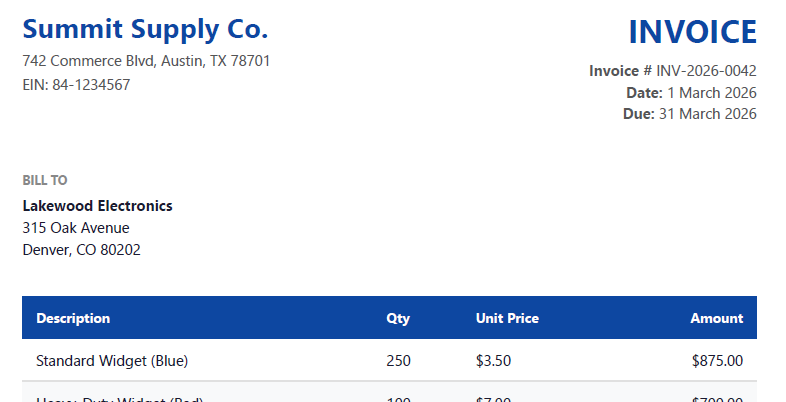
The key insight is that your invoice is just a web page. Design it with HTML and CSS exactly how you want the final PDF to look, then let CobaltPDF render it. Here's a clean, professional invoice template:
<!DOCTYPE html>
<html>
<head>
  <meta charset="utf-8" />
  <style>
    body { font-family: 'Segoe UI', sans-serif; color: #1a1a2e; margin: 40px; }
    .header { display: flex; justify-content: space-between; margin-bottom: 40px; }
    .company h1 { margin: 0; font-size: 24px; color: #0d47a1; }
    .company p { margin: 4px 0; font-size: 13px; color: #555; }
    .invoice-details { text-align: right; }
    .invoice-details h2 { margin: 0 0 8px; font-size: 28px; color: #0d47a1; }
    .invoice-details p { margin: 2px 0; font-size: 13px; color: #555; }
    .addresses { display: flex; gap: 60px; margin-bottom: 32px; }
    .addresses h3 { font-size: 11px; text-transform: uppercase; color: #888; margin: 0 0 6px; }
    .addresses p { margin: 2px 0; font-size: 13px; }
    table { width: 100%; border-collapse: collapse; margin-bottom: 24px; }
    th { background: #0d47a1; color: white; text-align: left; padding: 10px 12px; font-size: 12px; }
    th:last-child, td:last-child { text-align: right; }
    td { padding: 10px 12px; border-bottom: 1px solid #e0e0e0; font-size: 13px; }
    tr:nth-child(even) { background: #f8f9fa; }
    .totals { display: flex; justify-content: flex-end; }
    .totals table { width: 280px; }
    .totals td { border: none; padding: 6px 12px; }
    .totals tr:nth-child(even) { background: none; }
    .totals .grand-total td { font-weight: 700; font-size: 16px; border-top: 2px solid #0d47a1; padding-top: 10px; }
    .notes { margin-top: 40px; font-size: 12px; color: #777; }
  </style>
</head>
<body>
  <div class="header">
    <div class="company">
      <h1>Summit Supply Co.</h1>
      <p>742 Commerce Blvd, Austin, TX 78701</p>
      <p>EIN: 84-1234567</p>
    </div>
    <div class="invoice-details">
      <h2>INVOICE</h2>
      <p><strong>Invoice #</strong> INV-2026-0042</p>
      <p><strong>Date:</strong> 1 March 2026</p>
      <p><strong>Due:</strong> 31 March 2026</p>
    </div>
  </div>

  <div class="addresses">
    <div>
      <h3>Bill To</h3>
      <p><strong>Lakewood Electronics</strong></p>
      <p>315 Oak Avenue</p>
      <p>Denver, CO 80202</p>
    </div>
  </div>

  <table>
    <thead>
      <tr>
        <th>Description</th>
        <th>Qty</th>
        <th>Unit Price</th>
        <th>Amount</th>
      </tr>
    </thead>
    <tbody>
      <tr>
        <td>Standard Widget (Blue)</td>
        <td>250</td>
        <td>$3.50</td>
        <td>$875.00</td>
      </tr>
      <tr>
        <td>Heavy-Duty Widget (Red)</td>
        <td>100</td>
        <td>$7.00</td>
        <td>$700.00</td>
      </tr>
      <tr>
        <td>Widget Mounting Brackets</td>
        <td>50</td>
        <td>$1.50</td>
        <td>$75.00</td>
      </tr>
      <tr>
        <td>Express Shipping</td>
        <td>1</td>
        <td>$50.00</td>
        <td>$50.00</td>
      </tr>
    </tbody>
  </table>

  <div class="totals">
    <table>
      <tr><td>Subtotal</td><td>$1,700.00</td></tr>
      <tr><td>Sales Tax (8.25%)</td><td>$140.25</td></tr>
      <tr class="grand-total"><td>Total</td><td>$1,840.25</td></tr>
    </table>
  </div>

  <div class="notes">
    <p><strong>Payment terms:</strong> Net 30. Please quote invoice number with payment.</p>
    <p><strong>ACH:</strong> First National Bank | Routing: 111000025 | Account: 9876543210</p>
  </div>
</body>
</html>
Save this as invoice-template.html in your project. In a real application you'd generate
this HTML dynamically — using Razor, string interpolation, or a templating engine like Scriban — and
inject your actual order data. The point is that you design the layout once in HTML/CSS, and it
renders identically every time.
@media print CSS rules to fine-tune how your invoice looks
specifically in PDF output. CobaltPDF respects print stylesheets by default.
Step 2 — Render to PDF
With the template saved as a local HTML file, rendering it to PDF is a single call:
using CobaltPdf;

await new CobaltEngine()
    .RenderHtmlFileAsPdfAsync("invoice-template.html")
    .SaveAsAsync("invoice.pdf");

Console.WriteLine("Invoice saved!");
If your invoice HTML is generated in memory rather than saved to a file, use
RenderHtmlAsPdfAsync(htmlString) instead. Both methods produce identical output.
Step 4 — Password-protect the PDF
Invoices often contain sensitive financial data. CobaltPDF supports AES encryption with separate user and owner passwords, plus fine-grained permission controls:
using CobaltPdf;

await new CobaltEngine()
    .WithEncryption(new PdfEncryptionOptions
    {
        UserPassword  = "client-password",    // required to open
        OwnerPassword = "admin-secret",       // full control
        AllowPrinting = true,
        AllowCopying  = false,               // prevent copy-paste
    })
    .RenderHtmlFileAsPdfAsync("invoice-template.html")
    .SaveAsAsync("invoice-protected.pdf");
Download invoice-protected.pdf (password: client-password)
The user password is what your client enters to open the PDF. The
owner password grants full access and the ability to change permissions.
Setting AllowPrinting = true but AllowCopying = false means the
recipient can print the invoice but can't copy-paste the text — useful for preventing data scraping.
Step 5 — Stamp with a watermark
Draft invoices, proforma quotes, or internal review copies often need a visible watermark to signal that the document isn't final. CobaltPDF ships with four built-in watermark styles and a fluent API for customizing them.
The simplest option is WatermarkOptions.WithText, which generates a styled
watermark from a text string:
using CobaltPdf;

await new CobaltEngine()
    .WithWatermark(WatermarkOptions.WithText("OVERDUE", WatermarkStyle.RedDraft))
    .RenderHtmlFileAsPdfAsync("invoice-template.html")
    .SaveAsAsync("invoice-overdue.pdf");
CobaltPDF includes four built-in styles: SoftGray (subtle, light-gray diagonal),
RedDraft (bold red diagonal), Diagonal (minimal dark-gray),
and BoldStamp (prominent centred stamp with a border).
Customizing with the fluent API
Every property is chainable. You can override the color, opacity, rotation, and position after selecting a preset:
// Red "OVERDUE" stamp in the top-right corner
.WithWatermark(
    WatermarkOptions.WithText("OVERDUE", WatermarkStyle.RedDraft)
        .WithPosition(WatermarkPosition.TopRight)
        .WithColor("#e74c3c")
        .WithOpacity(0.2)
        .WithRotation(-15))
WithPosition accepts any of the nine WatermarkPosition constants:
Center, TopLeft, TopCenter, TopRight,
BottomLeft, BottomCenter, and BottomRight.
For full creative control, watermarks also support custom HTML and CSS — letting you
include images, multi-line text, or any layout you can build in a browser. See the
developer documentation for details
on the WatermarkOptions.Html property.
Putting it all together
Here's the complete snippet combining the template, footer, watermark, metadata, and encryption:
using CobaltPdf;

var footer = @"
    <div style='width:100%; font-size:9px; color:#888;
                padding:8px 40px; display:flex;
                justify-content:space-between;'>
        <span>Summit Supply Co. — Confidential</span>
        <span>Page <span class='pageNumber'></span>
              of <span class='totalPages'></span></span>
    </div>";

var pdf = await new CobaltEngine()
    .WithFooter(footer)
    .WithMargins(new MarginOptions(20, 15, 25, 15))
    .WithWatermark(WatermarkOptions.WithText("OVERDUE", WatermarkStyle.RedDraft))
    .WithMetadata(m =>
    {
        m.Title   = "Invoice INV-2026-0042";
        m.Author  = "Summit Supply Co.";
        m.Subject = "Invoice for Lakewood Electronics";
    })
    .WithEncryption(new PdfEncryptionOptions
    {
        UserPassword  = "client-password",
        OwnerPassword = "admin-secret",
        AllowPrinting = true,
        AllowCopying  = false,
    })
    .RenderHtmlFileAsPdfAsync("invoice-template.html");

await pdf.SaveAsAsync("invoice-final.pdf");

Console.WriteLine($"Saved {pdf.Length / 1024}KB encrypted invoice");
Download invoice-final.pdf (password: client-password)
This renders the HTML invoice template with background colors preserved, adds a professional footer with automatic page numbering, stamps every page with a "DRAFT" watermark, embeds searchable metadata (title, author, subject), and locks the PDF with AES encryption — all in a single fluent chain.
Summary
We built a complete invoice PDF pipeline using HTML, CSS, and CobaltPDF:
HTML templates
Design invoices with standard HTML and CSS. Use RenderHtmlFileAsPdfAsync or RenderHtmlAsPdfAsync for in-memory HTML.
Headers & footers
Add branded footers with automatic page numbering using WithFooter and Chromium's built-in tokens.
Watermarks
Stamp every page with "DRAFT", "PAID", or custom text using WithWatermark and built-in style presets.
AES encryption
Password-protect invoices with WithEncryption. Control printing, copying, and modification permissions.
Ready to try it yourself?